The Complete Guide to Placeholder Images in Web Development
Placeholder images are essential tools for web developers. Learn how to use them effectively in prototypes, development, and testing.
The Role of Placeholder Images in Modern Development
Placeholder images are temporary graphics used during web development and design when final images aren't available. They're essential tools for designers, developers, and content teams, enabling work to progress without waiting for final assets.
Why Placeholder Images Matter
Maintain Development Momentum Don't let missing images block your progress. Placeholders allow frontend development to continue while content is being created or approved.
Visualize Layouts Accurately Seeing approximate image sizes in context helps identify layout issues early, before expensive rework is needed.
Test Responsive Behavior Placeholders with specific dimensions help verify that responsive layouts handle images correctly across breakpoints.
Client Presentations Show clients realistic mockups without final photography, helping them understand the vision without getting distracted by placeholder content.
Performance Testing Use placeholders of specific file sizes to test loading behavior and performance optimizations.
Types of Placeholder Images
Solid Color Placeholders
The simplest placeholders are solid color blocks that indicate image placement.
Advantages:
- Fastest generation
- Smallest file size
- Clear visual distinction from final content
- Easy to identify as placeholders
- Early wireframing
- Layout testing
- Performance baseline testing
Placeholder with Dimensions
Images that display their own dimensions help teams communicate about sizing.
Advantages:
- Self-documenting
- Helps designers and developers align
- Easy to verify correct sizing
- Useful for responsive testing
- Design handoff
- Responsive development
- QA testing
Dynamic Text Placeholders
Placeholders that display custom text alongside dimensions.
Advantages:
- Context about intended content
- Helps identify image purpose
- Useful for content planning
- Content-heavy sites
- CMS development
- Editorial workflows
Realistic Placeholders
Stock-style images that approximate final content (landscapes, portraits, products).
Advantages:
- Closer to final appearance
- Better for user testing
- Helps stakeholders visualize
- User testing
- Client presentations
- Near-final reviews
Placeholder Image Services Comparison
Popular Services
| Service | Customization | Speed | Features |
|---|---|---|---|
| Placeholder.com | High | Fast | Text, colors, formats |
| Picsum.photos | Medium | Fast | Real photos, blur, grayscale |
| Placekitten.com | Low | Fast | Cat photos |
| PlaceIMG.com | Medium | Medium | Categories (nature, tech, etc.) |
| LoremFlickr | High | Medium | Keyword-based images |
| DummyImage.com | High | Fast | Many formats, colors |
Choosing the Right Service
For Wireframing:
- Use simple dimension-display services
- Solid colors work best
- Keep file sizes minimal
- Use realistic image services
- Match approximate content type
- Consider brand colors
- Use realistic photos
- Avoid distracting placeholder text
- Match expected content closely
- Generate specific file sizes
- Test various formats
- Simulate real-world conditions
Responsive Placeholder Strategies
Aspect Ratio Containers
Maintain aspect ratio for placeholder areas using CSS:
position: relative with padding-bottom percentage creates the aspect ratio, then absolute positioning fills the container with the image using object-fit: cover.
Art Direction with Placeholders
Use the picture element with source media queries to serve different placeholder dimensions for desktop (wide banner), tablet (square), and mobile (tall) viewports.
Development Workflow Best Practices
1. Establish Placeholder Standards
Create team guidelines for placeholder usage:
- Consistent color scheme (e.g., brand accent colors)
- Standard text format (dimensions, content type)
- Naming conventions for local placeholders
- Documentation of placeholder URLs used
2. Use Environment-Based Loading
Load placeholders in development, real images in production using environment checks.
3. Create a Placeholder Component Library
Build reusable components for consistent placeholder usage:
- Avatar placeholders
- Hero image placeholders
- Product card placeholders
- Gallery item placeholders
4. Document Image Requirements
Use placeholder text to communicate requirements:
- "Product: 800x800 PNG"
- "Hero: 1920x600 JPG"
- "Avatar: 100x100 Square"
5. Test with Various Placeholder Sizes
Verify layout resilience by testing with:
- Exact expected dimensions
- Slightly larger images
- Slightly smaller images
- Different aspect ratios
Common Placeholder Mistakes
Design Mistakes
- Using realistic placeholders for wireframes: Clients focus on wrong details
- Inconsistent placeholder styles: Creates visual confusion
- Placeholders in production: Always replace before launch
- Wrong aspect ratios: Masks layout problems
Technical Mistakes
- Hardcoded placeholder URLs: Difficult to replace later
- Not setting dimensions: Causes layout shifts
- Ignoring lazy loading: Placeholders should lazy-load too
- No alt text: Accessibility matters even for placeholders
Workflow Mistakes
- No placeholder strategy: Inconsistent usage across team
- Not documenting requirements: Placeholders without specs
- Skipping placeholder phase: Jumping to final images too early
- Not testing replacement: Layout issues when swapping images
Using ToolPop's Placeholder Image Generator
ToolPop provides a comprehensive placeholder image generator for all your development needs.
Features
- Customizable dimensions: Any width and height
- Color options: Background and text colors
- Text display: Custom text or dimensions
- Format selection: PNG, JPEG, WebP
- Instant download: No account required
Workflow
- Enter dimensions (width x height)
- Choose background and text colors
- Add custom text (optional)
- Download or copy URL
Conclusion
Placeholder images are fundamental tools in modern web development workflows. They enable parallel workstreams, facilitate communication, and help identify issues early in the development process.
Key takeaways:
- Choose placeholder types appropriate to your workflow stage
- Establish team standards for consistency
- Use environment variables to manage placeholder/production switching
- Test responsive behavior with appropriate placeholder sizes
- Always replace placeholders before production launch
Related Articles
WebP Image Format: Complete Guide for Web Developers
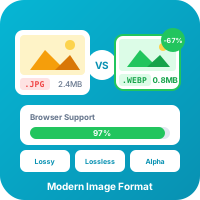
WebP offers 25-35% smaller file sizes than JPEG with equivalent quality. Learn everything about this modern image format and how to use it effectively.
Read more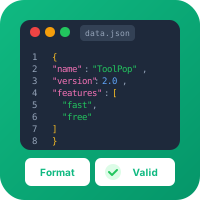
JSON Formatting and Validation: A Developer's Complete Guide
JSON is everywhere in modern development. Learn how to format, validate, and debug JSON data like a pro with this comprehensive guide.
Read moreTry Our Free Tools
Put these tips into practice with our free online tools. No signup required.
Explore Tools